Make a Custom Fingerboard with CNC
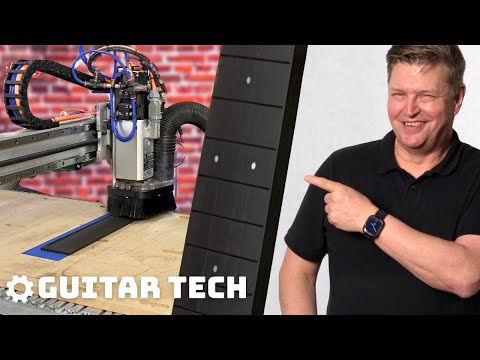
Fingerboards are one of the most time-consuming and tool-intensive parts of building a guitar. Between dialing in the radius, cutting precise fret slots, and ensuring proper dimensions, it’s a job that traditionally requires specialized hand tools and a lot of patience.
But a CNC can make the process faster, more accurate, and surprisingly approachable—even if you’re brand-new to CNC work. In this episode of our new series Guitar Tech, StewMac’s Brock Poling walks you through his step-by-step approach to creating a beautiful, customized fingerboard. Check it out!
Video Transcription
[on-screen graphic reads: StewMac Presents: Guitar Tech]
Brock Poling: If you've been curious about CNCs, maybe you're looking at one, maybe you have one, but you haven't figured out how to make it productive in your shop yet, you're in the right place. I'm Brock Poling. I work here at StewMac. I build acoustic guitars. I build electric guitars, and most recently I've gotten into ukuleles. Today, we're going to make a beautiful Ebony fingerboard on a CNC, exactly like these two others for some 17 inch tenor ukuleles I'm building for a few of my customers.
When I first got started, I learned how to build instruments the traditional way, with traditional shop tools. And to make a fingerboard like this, I would have had to dimension my board on a table saw and then to drum sander, cut the fret slots using a fret slotting miter box, or a specially table saw crosscut sled, radius the fingerboard by either sanding it or using a specialty router jig, profile the board with a custom routing template, add external binding, and then go in and drill for tiny fingerboard position markers. Wow, that is a lot of work.
It takes a lot of time. When I build, I'm really about two things. One is I am about getting the absolute best result I can. And number two, finding ways to make my work more efficient. If I can find a way to get a great result and do it quicker, fantastic. Sign me up. I'm all for it. CNC helps accomplish both those things, but I will say this, some people think CNC is magic. You just push a button and a part pops out. And I am here to tell you that is absolutely positively not true.
CNC is just like every other tool you have, a router, a hand plane, a table saw. It takes time to learn how to use it. This is the first episode of a new series that we're calling Guitar Tech, where we explore how new technologies are coming into the workshop and changing the way we're making guitars.
If you're someone who's more comfortable with hand tools than computers, and trust me, I get it. Hopefully this series is going to help demystify this new technology and give you ideas that you can bring into your next project. I'm still very much a beginner. I'm still learning CNC. So if you're an expert and you see something in this video that could help level me up, please share it because we all get the benefit from that. So with that, let's dig in.
Designing CAD with VCarve Pro
Brock Poling: Welcome to our CNC corner and our studio, kind of centered around this ShopBot Desktop Max CNC that we have. We're going to be using a program called VCarve Pro. VCarve Pro is a very common program that a lot of people start with because it's inexpensive and it's fairly easy to learn how to use. And it really includes two things. It includes CAD, which is essentially our drafting software that allows us to draw our part and it has CAM, which essentially then takes that part and then converts that into the instructions that the machine needs to actually cut the part later.
So to get started, we're going to launch our VCarve Pro software. We're going to start a new project. So when you begin your projects, the first thing it does is it starts with your job setup where you essentially define how big is the project that we're working on. In the X direction, that essentially we are looking at that piece of Ebony you saw earlier laying on our bench is 3 inches wide by 15 inches long, by a 1/4 of an inch thick. We are going to put our data, essentially where's XYZ located? XYZ is located in the center of our piece of work. We'll go ahead and hit okay.
And so here's our canvas. This is what we're working on. This is essentially the size of that piece of wood. Now, one of the things that gets very helpful is to think about the layers.
The first layer that we want to create is our center line. I try to put everything on its own layer. So if you then go back and want to turn things off or turn things on, it allows you to do that and it makes the work go a lot smoother. We will then come back over into our design area and we're going to grab the line tool and then we're going to go in and draw a line down the center. Now, if you noticed, the cursor changed from that little plus to this little target plus when I got over the center of the material. And so I'm going to start my line by clicking once and then when it gets down here at the end, I get that cursor back again the same way and click here and then essentially just right click to shut my line off.
Now I have a center line that's drawn down the material. This is going to be very helpful. We're going to need this as we continue on building the fingerboard. So then the next thing we want to do is we want to establish where is the nut going to be on this. We're not going to use the whole 15 inches of length. We can really essentially put the nut anywhere we want. And to do that, I'm going to go back to the line tool and just start it, let's say right about here. And so we will make the nut go across like that. And then I'm just simply going to copy and paste that and then you can say, why are you doing it that way? That seems weird. And maybe it is. But I find that mirroring the technique of what is on the right side to the left side is very helpful because sometimes when you're drawing parts that you need them to be symmetrical on both sides of your center line and this is just a good habit to get in as opposed to just swiping a line because if it didn't end up to be absolutely perpendicular to that line, you would have a problem.
We're going to mirror it about the line. So we go into the tool here, essentially mirrored select objects and I have my piece selected. I'm going to tell it by shifting and then clicking on the center line, that's going to allow me to define what I want to mirror about and say flip about the line. Boom. Now I've got my nut and then I need to join these two lines together. So I will hit shift, click both lines and there is a join tool right here. We'll click join, boom. Now we have one line.
So then we'll get rid of the excess that we don't need. We're going to click our line and we're going to do the node tool by hitting N, and then we're going to grab that green dot and we are going to come back to the edge of our fingerboard and we're going to get the other end and we're going to do the same thing right to where it was. So now we have a line that defines our nut position and it is perpendicular to our center line. Okay. So from here, let's go make a new layer and we're going to call this new layer master fret positions. So we're ultimately going to have a couple of different layers that'll mark where our frets are, but we're going to start by positioning them just like we would cut them on a table saw. So if this is our nut, then we need to say, well, where are the different positions?
And to do that, we're going to use the StewMac Fret Calculator. This fingerboard's going to have 20 frets on it and the scale length is 17 inches, which is pretty typical for a tenor ukulele. It's measured in inches and we choose our instrument being the ukulele, we calculate and here are our fret positions. Now, when you use these fret positions, it's important to not multiply error. So it's generally a better idea to use the position from the nut than fret to fret, because if you get a little bit of error and it's in fret to fret, your error can multiply as you go down the board. If you have a little bit of error in any one of these frets, then the next fret should zero out the error that you had before. Errors are not great. You don't want that, but you don't want to continue to make it worse and worse as you go along.
So we're going to start by going back to our design tab, getting out of the node edit tool, and we're going to use a tool called offset. The offset tool is right here. And when we click this, we can make another line offset from the first line as far as we like. The position of our first fret is 0.954 inches away from the current line. One of the oddities of VCarve Pro is sometimes that the inward goes the direction you want and sometimes the outward goes the direction you want. It's often I just do want it, and if it isn't right, I just switch it to the other. So let's just try outward and see what happens. Okay, boom. That's the direction what we want. 0.954 from the nut is our first position of our fret.
We just do it again for the second one. 1.855. Okay. And the third fret is 2.705. Fourth fret, 3.507. And about now, somebody's going to go to the comments and start making comments about millimeters. And yep, all of these can be in millimeters too. 4.264, 4.979, 5.654, 6.291, 6.892, 7.459, 7.995, 8.5. And on a 17 inch scale, this is halfway. So this is our 12th fret. So there's 20 frets. Okay, boom. Congratulations. You have just drawn the fret slots on your fingerboard.
So now with that done, let's set up our nut location and the width of our fingerboard at the 12th fret. On my projects, that my fingerboard has a 1.44 width at the nut location. Okay? So let's go up here and remember this is our nut, not this. Okay, that is not the nut. This is the nut. When I put all those fret slots in, I just sort of lost track of did I put my line down from the top or did I put my line down from essentially what our nut line was?
One way to check, you can use this tool right here, which adds dimensions to your worksheet. So if you click this, then you can essentially measure between whatever points you want. So in this particular case, I'm using a length dimension, which is what we want. And I'm going to measure from essentially what is the nut position to the first fret, and that is 0.954. And if you go back and check that against the fret calculator, it's 0.954. So we are correct.This is the nut location. Let's turn off our dimension layer. So in the layers, as soon as you use the dimension tool, it creates a layer called dimensions and all the dimensions will be on this layer and to get rid of them, just simply turn it off. So what we're going to do now is we are going to work on designing the outline of the profile of the fingerboard.
So essentially it'll have the taper and it'll have the end of the fingerboard that we have, which had the little arc on it. Before we do that, the first thing I'm going to do is I'm going to create a layer that I am going to call FB Positions so we don't forget where our nut is and our 12th thread and other frets that we need to know. So the first thing we're going to do is I just created this layer. This is the active layer. So we'll go ahead and we'll go back to design. We're going to get the text tool and then we are going to tell it to make not 15 inch high letters, but we're going to make half an inch high letters 0.5 and we're going to say nut. We're going to go ahead and take that, just put it right across the nut.
Then we're going to create another one called 12. So let's go ahead and turn our layer of the dimensions back on and that'll show us our 12th fret. So right there's our 12th fret. So we'll take the 12 position and we'll put it right here. Now we know where 12 is. And this is going to be important for at least a little while while we lay out the rest of the fingerpoint. Okay? But because this is on its own layer, I can simply shut these off if they're in the way. So what we're going to do, shut off the dimensions, we're going to go back to our design tool and we are going to highlight the center line and that we are going to start working on figuring out what is our nut width because essentially what we're going to do is we're going to work on drawing the taper.
Okay? So the nut on this ukulele is 1.44 inches across. So all the way across half that dimension is 0.72. So we're going to go in and we're going to use the offset tool. And in this case, we're going to use both the right and the left of the offset at 0.72, boom. So between these two lines, this is the nut width laid out essentially in the center of this board, this piece of material that we're going to cut. And then we're going to do the same thing again for the width of the fingerboard at the 12th fret. And the 12th fret is important because whatever the width is of the fingerboard that we have at the 12th fret will also be our saddle spacing when you get all the way down to the saddle.
So in this particular case, this fingerboard is 1.75 inches at the 12th threat.So divided by two, that's 0.875. So we're going to do our offset at 0.875, boom, right there. Okay. So what we're now going to do is we're going to take and we are going to draw a line between the nut location and the 12th fret location and that is our taper from the first fret to the 12th fret. So we need to do essentially that same thing again, but instead of drawing this line on the other side, we're going to do that trick that I mentioned before is we're going to mirror it across the center line. So we're going to take the line, we're going to copy it, we're going to paste it, hit shift and select our center line and now we are going to use the flip tool and we're going to flip this about the line. You will see we have a taper line that goes from the nut to the 12th fret on both the right and the left side of the fingerboard.
But you're like, okay, well that's great. That's awesome. But the fingerboard is longer than that. So here's what we're going to do. We are going to select both of these taper lines. We're going to copy them and paste them. We are now going to flip them about the 12th fret. So now this is going to be the line we're going to flip them about and now you're like, but wait, wait, wait, wait, wait, they're going the wrong direction. Yep, they sure are.
And we're going to take this one, we're going to take the left one, and we are going to highlight this and we're going to flip this about the line that way. We're going to take this one and we're going to hit shift and flip this about the line that way. And lo and behold, look what just happened. Now we have a line that goes all the way. Now, it's a little confusing with all these lines here. So let's get rid of some stuff. Let's get rid of these two offset lines.
Let's take those out of the equation, take these out of the equation. Look at here. We've got a fingerboard taper. If you recall, we are back on the layer for fingerboard positions. If we shut everything off, let's shut off our Master Fret Slots and you will see that we kind of have a connector here because we drew our nut as its own layer, but now what we want to do is we want to, on the FB positions layer, we want to actually make a line.
Let's make a layer. Let's move this to its own layer called Nut Location.
And if you want to move these around, all you have to do is highlight them like this, and then just use the arrows, push them up and down. So okay, so let's say we want to shut the net location off, is we want our fingerboard taper to connect these two lines in between here, because ultimately this is going to be the actual outline of the fingerboard itself. So let's go ahead and turn that back on. Let's go back to our design tool. Let's get our line tool and let's make a line. Let's check and see which layer we're on.
Okay. We want to be on the FB positions layer and let's make a line between these two. So we're going to get our position lined up. Boom. So let's say I'm a little off. Let's say I don't actually get it connected. Let's say I'm here, that's my vector and it didn't connect.
So we can go into node edit mode just by hitting N and this will give us all the nodes in the line and we grab a hold of this point and we'll just drag it until it connects with what we want it to connect with. So we've basically fixed that. So back in here, so let's now shut off our Nut Location Line and presto, we have got the fingerboard more or less drawn where we want it to go. So now let's work on making the other end of the fingerboard.
Now in this particular case, I'm just going to tell you what the dimensions are of my fingerboard because it goes into a much larger kind of design of the overall ukulele entirely. So in my ukulele, yours is going to be however you design it. From the center point here to the center point of the top of this arc, we are going to measure down 11.8137 and that is the top of that arc right there.
So what I'm going to do is I'm going to do an offset just like we did for a fret position at that. So let's go ahead and do that and let's turn our nut location back on, select our nut location. We're going to go in our design tool and we're going to do an offset, okay? And I believe it was outwards is when we did this before and we do 11.8137. Now that is the top of our radius. That is the top of this arc right here. Now what we need to do is we need to draw this arc. And the way we're going to do that is the radius of the circle essentially that has its tangent right at the top of this mark right here is 1.3248. So we're going to mark this line right here and then we're going to offset again this time 1.3248 and that's going to make another line and that's this line right here.
Now this is going to be the center of a circle. So let's go back to our design, grab the circle tool, and then we are going to say 1.3248 is going to be our radius. Okay, boom. All right, so there it is. All right, so let's close this. Let's go start getting rid of some stuff and let's make some lines. So let's shut off the nut location, shut off the center line, but let's go back to the design. Let's use our interactive trim tool and let's start getting rid of some stuff. So we can get rid of this, let me get rid of this. There's easier ways to get rid of this stuff, but this works. Look at that. Now we have the end of our fingerboard. We've got some stuff all on the same layer here.
Let's separate some of this stuff out where we added FB positions, okay - let's take everything else out of this and put it on its own layer. So let's go ahead and just grab all of these vectors that really are the profile of our fingerboard. Let's move these all to their own layer called FB outline. So we'll shut off the numbers, the positions, and this, lo and behold, is the outline of our fretboard, exactly the shape that we need it. And then if we turn our master fret positions on, that is where all of our frets are. So we can start to see that we're getting pretty close to working on a fingerboard.
There's a few more things we need to do. Like if you notice that this fingerboard, the fret slots don't go all the way to the end and that that's intentional. This has a style on it called faux binding. In this approach, I don't have to put another piece of binding on this fingerboard.
And so I made the fret stop just a little bit shy. Now these are pretty close. I tend to work these and get these pretty close to the end. You could back these in a little farther if you want. So I'm going to show you how to do that next. So now this is the outline of our fingerboard and sometimes Vetric is smart enough to know how to connect all these lines together and sometimes it is not and you have to do it yourself. So in this particular case, it does not look like it did it. On our FB outline tool, go back to design and let's join the vectors. Okay? So let's go ahead and come in here, join vector, and now this is all one continuous line all the way around. Okay? What we want to do, let's go ahead and close that.
We want to go back into the offset tool and that this time we want to come inwards and we want to come inwards, let's say 0.05. Okay? So we're going to come in 50 thousandths from the end all the way around. What that has done is that has created an inset around the inside, which essentially will create this faux binding that we're talking about. Okay. So now let's go work on some layers here for a second. Back into our layer tool. Let's move this to a new layer called Final Frets.
Okay. Let's turn on the Master Fret Positions and turn off everything else. Okay. Let's go ahead and take everything here and then we're going to copy two layer, which is a little different than what we've done a second ago. We're going to copy this to Final Frets and then we're going to shut off the Master Fret Positions, turn on Final Frets. Here, what we're going to do, let's take this inside line and let's move this to the layer for Final Frets as well. That's going to make life a little easier. Okay. All right.
So then we'll shut off the FB outline. Okay. So now all we're left with is the inset. You'll see it again. All we're left with is the inset and the frets. And so then now what we do is we come back with our trim tool and get rid of all these extra lines.
So while I'm doing these monotonous things, it's worth mentioning that when you're doing this work, it is worth going back and double and triple checking all of your measurements as you're going through because I can't tell you how many times that I've made a mistake and got all the way through cutting apart and then realize that the measurements aren't right. So I mean, the old rules still apply, right?
The measure twice cut once, or in my case, measure five or six times before you cut. It still applies. So continue to do that. CNC doesn't make any of that go away. All right, let's go to this layer, this outline layer right here. Take that away. We don't need that anymore. And now when we go back and we turn our FB outline, which is our real outline, lo and behold, the fret slots stop a little short at the end of the fingerboard, which is exactly what we want.
So look at here, we got a fingerboard. So in the next part, what we're going to do is we're going to locate all of the position markers on the fingerboard. So let's turn our center line back on because that's going to make life easier. Let's create a new layer and we're going to call it two millimeter position dots. Okay? I like to use small, very small petite markers on my boards. If you'll notice, the first one shows up with the third fret position. So we got the first, second, third. So let's shut our final frets off for a second and let's turn the master fret positions on, even turn this on nut location, and then let's turn on our fretboard positions. Okay. So now we know first fret, second fret, third fret. So what we can do, and this is pretty much the traditional way that you would do this, is very simple that we can just draw a line from corner to corner.
So we can take from this corner to this corner, get rid of that, and we can go from this corner to this corner. Now it wasn't necessary for me to draw both lines here. Just a habit for me since it's the traditional way I'd do it if I were building it by hand. Just check and make sure what layer I'm on. Yep, that's where I want to be. We're going to do millimeters, two inches.
0.0787. All right, so we're going to go here and we're going to draw a circle with a diameter of 0.0787. Right there, boom. Okay.
Then we can get rid of these lines if we like. And then we're going to go to our fifth fret location. We're going to go to the seventh position, so we've come down two more. After seven, we're going to 10. Let's skip 12 for a minute. So 12, 13, 14, 15. So we're going to go 15. All right. So there's all the ones that are in the center. On the 12th fret, we're going to do the 12th just a little bit differently. We are going to draw 12 by taking our line from the edge of our fingerboard to the center line, doing the same thing again.
Then we're going to draw our dot here. All right, let's get rid of these lines that we don't need. Okay. Now we're going to take this. We're going to copy it. We're going to paste it. We're going to mark our center line and you guessed it. We're going to flip it about the line. Boom. Okay. Shut off the Master Fret Positions, turn on the Final Frets, shut off the Nut Location, Fingerboard Positions. And lo and behold, there is a fingerboard.
Creating Toolpaths in CAM
Brock Poling: So we just finished all of the design for the fingerboard. And so now what we need to do is we need to work on the cam components of this.
This is essentially taking the design that we just created and translating it into instructions that the machine knows how to create. What we're going to do now is that we're going to work on the radius and we're going to build the tool paths we need to cut the 10 inch radius in the top of the fingerboard.
And in all the steps we're going to do in the cam portion of this, this is the most complex. It's not hard. There's just a lot of steps. So we're just going to take it one bite at a time and go through it. So the first thing we want to do is we want to make a new layer that will be Fingerboard Radius. Okay? And we're going to make that our main layer and we'll go back to our design tool and then we're going to go to the center and we're going to make a line. We're just going to draw down a little ways from the center. Okay? Now, it doesn't matter how long that line is, that is immaterial. Then we're going to take, and we're going to draw a line that is perpendicular to this. So we want a perfectly 90 degree line.
We go this way. We will copy that, paste that, and we will flip that about the line. Okay? And then we're going to join these two lines. You can join lines with the right clicks as well. Okay. When we're cutting, this now represents the surface, the top of the fingerboard that we're going to cut. But the top of the actual completed fingerboard is going to be 1/32 smaller. So we're going to create an offset line that's a 1/32 inch away from this. So let's go to our offset tool.
0.3125 It's a 1/32 of an inch. So now that represents what will ultimately be the top of the fingerboard. Now we have a 10-inch radius that is going to represent essentially the fingerboard. Now what we want to do is we want to draw a circle, a 10-inch radius circle that has the tangent to be right here at this point. So the easiest way to do that is to highlight this line, and now what we're going to do is we're going to do a 10-inch offset to this circle.
So now we're going to have a line essentially 10 inches away from this and boom, there it is. So to get our circle, then what we're going to do is that we are going to go to our circle tool and we are going to set a radius to 10 inches and we're going to come make this circle center point right here on the center.
And if we come and we look, lo and behold, there's our circle. It's got the radius with the tangent point right here in the center. All good so far. So now what we're going to do, we're going to come in and we're going to make two lines that come down from the edges like so. Okay. And then we're going to come in with our trim tool, get rid of everything we don't need. So get rid of the part of the circle we don't need, get rid of these extra lines, get rid of these extra lines.
So now we have this mess of lines. Now, for the molding tool that we're going to use in a second, it essentially needs us to join three vectors together. So we join these three together and this is essentially what will create the 10 inch radius that will ultimately go on our fingerboard. So we are going to join these vectors together. So now these are joined together. All right, boom. There's a big portion of what it is that we need. We can get rid of this line right here. So now what we're going to do, we're going to draw one more line that's going to give us everything we need to draw the vectors. So we're going to start here just along the edge, just below the end of the fingerboard to just above the end of the fingerboard. We want this line to be vertical.
So now let's come in and make our tool path. So we've got all the pieces we need. To open the tool path's area, we hover over this area that says tool paths over on the right. And then there's this little push pin right here. And if you click that, that'll keep that permanently open. Okay. And so what we need is we need the molding tool, which is right here. And that we're going to say we're not starting with any gap above. We are going to use a ball nose end mill. So let's come in and select our tool. So for this tool, we are going to use a quarter inch ball nose end mill.
And the settings that we're going to use on this bit, a two flute ball nose end mill. We're going to have a 0.125 or 1/8 inch pass step. We're going to have a 0.01 step over, which represents 4%.
We're going to run at 18,000 RPM. We're going to leave the units in inches per minute. We're going to have 55 inches per minute, and we're going to do 30 inches per minute on a plunge rate. And we're going to set this up as tool one. So normally the tool doesn't matter, but because we have a tool changer, I'm going to change these tools by hand when we actually get to the part where we're cutting.
We're not going to use the tool changer because I want to demonstrate essentially what it might be like for a lot of people with a home CNC machine where they don't have a tool changer. So we're going to change all these by hand. So with that done, click apply, select, and there we are. So now we're ready to generate this tool path. So what we're going to do is we're going to call this 01, 10 inch radius, 0.25 ball nose and mill.
Okay? I will click my line. I will click my profile, hit calculate. Okay, boom. There's our tool path. So what's happened is it moved me out of the 2D view where we just were, and I can show you where we just were and shut that off. And then it moved me over to the 3D view where we are now and it showed me essentially what it's going to try to cut. So we can get this out of the way, reset our preview. So we're just back to a blank of wood and then tell the machine to preview all tool paths. It's going to show you essentially what's going to happen when it starts cutting.
And so you can't really see this super well, but you can see that we do indeed have a radius in the top of our piece of wood. So that's good.
Step one, looking good. So next we're going to go to working on cutting our fret slots. So to do that, let's think about how deep we want to cut these first. If we think about how deep do we need to cut these fret slots that we have a piece of fret wire and that fret wire has a crown on it and then it has a tang on the bottom, the little T-shaped piece of wire that goes on there. Each one of those tanks has a certain amount of depth associated with it. And so we need to make sure that the whole depth of that tang is going to fit inside of that slot when we cut it. Not just from this position here at the top of our wire, but we need to make sure that we cut it at probably about this position right here at the end of our wires.
Let's say we take a fingerboard and let's just make a couple of throwaway lines, make a couple of lines that come straight down from the end of our fingerboard. So we need to measure down a certain amount from each one of these. Now, how much are we going to do? So that really depends on your fret wire. To get that number, we're going to come back to the StewMac website and we are going to go look at some fret wire. And in my particular case, I'm going to use narrow fret wire because this is on ukulele, but this is going to pertain to whatever fret wire you're using whether it's StewMac fretwire or Jescar fretwire or any other fretwire. We're going to look at this and we're going to say, okay, well my fretwire, if I use narrow low, my fret wire is 0.054 deep.
So I need to make sure that from the bottom of this line right here, I'm 0.054 deep. That plus this is essentially where I need to go. So let's come in tight here. Let's make a line 90 degrees like that. Now let's do an offset that's 0.054. Okay. Get rid of this. So this is going to be the absolute minimum. I can go in terms of the depth of my slot. So we need to measure from here to here to see how deep we need to cut that slot.
Okay. So we need to cut that slot 0.0979. Now, some of you might be saying, "Well, what you could do, what you should do, cut a curved slot." And that's true. And some people do that. We can't cut that kind of slot in this software. You would need a full 3D software package to cut that curved slot. Using the 2.5 D software package, we need to cut a straight slot all the way through. So that's what we need to do.
So at the absolute minimum we need to cut is we need to cut 100 thou deep inside that slot. Take this out, that out, that out. I think we can remember 100 thou so we can take that out. So okay, we're kind of back to where we were. Go back to layers. We will shut off our dimensions tool to clean this up a little bit, get rid of our fingerboard outline, get rid of our position dots, get rid of our radius, and we're back to the fret slots.
Okay, so select our fret slots and we are going to cut, let's say instead of cutting 100 thou deep, we're going to cut 110 thou deep. So we're going to go 0.110 inches deep for our cut. And in terms of our bit that we're going to use, we're going to use a 0.024 shell cutter bit. These bits are available kind of all over the internet. I will say that my experience has been you get what you pay for in terms of bits. Better bits have better tolerances and those tolerances lead to better results and fewer broken bits. So it's like they're expensive, but spending a few extra dollars sometimes really makes a difference.
Okay. So we're going to set this up. So we have a 0.02 cutter. It's 0.024, but I'm setting the settings at 0.02. It's a three flute cutter. We're setting the past step at 0.01 inches, our step over at 0.0064 inches, which is 32% of the cutter, setting the RPMs at basically your maximum spindle speed.
In my case, that's 24,000. Setting this to inches per second, not inches per minute, and the feed rate is 0.1 inches per second, and the plunge rate is 0.1 inches per second, and we're going to change this to be tool one, because again, because of the way we're going to force the machine to basically allow me to do hand changes of bits. Now that we have our tool configured, let's set the rest of the parameters in our tool path. Since we want to cut on the line, we're going to make that selection right here, and we'll go ahead and make sure that we've chosen a conventional cut for this.
Since we're starting above the fretboard, there really is no reason to add ramps to our tool path. So we'll go ahead and leave that off. And then we'll come down and we will name the tool path 02 - Fret Slotting .110 Deep, 0.024 UCEM (or upcut end mill).
Now from there, we'll go ahead and we'll calculate our tool path. That looks good.
And then we will turn that off, reset our preview, and we will run our selected tool path. And lo and behold, there we have some fret slots, which you can see right here. So let's go ahead and reorient ourselves. Let's clear this off. Let's go back to resetting our preview. Let's go back to our 2D view. Now let's turn some stuff back on.
Let's turn our position markers back on, our fingerboard outline, and then maybe back to our fingerboard. Okay. So now what we're going to do is let's cut our position markers. So these are two millimeter dots. Our bit is smaller than two millimeters, so we don't need to change the bit. There's no point in it. Let's keep the bit we got in the machine and let's come in and select just the ones in the center for the second for the moment.
We're going to actually make two tool paths for this, one for these and then one for the next one. Okay? So go ahead and close that. And then for this, we're going to use a pocket tool path. And so we're going to stick with the same bit we've got in there now, the 0.024 cutter with the same settings that we had before. And then we are going to cut these 50 thousandths of an inch deep. Now, the actual shell pieces themselves are closer to 60 thou deep, but I want them to be just a little proud of the top of the fingerboard when they're fully seated.
So finishing up our tool path. We want to select offset, which essentially is going to clear the pocket by cutting a spiral pattern. Raster goes back and forth, which it does have some applications, but in this particular one, we want to go ahead and use the offset.
And then we're going to also choose climb cutting. And while using ramps is generally a good idea with this tiny cutter in such a tiny amount of space, it really is practically unnecessary. So we're going to go ahead and skip that. So we're going to be calling this one 03- Dots Center 0.024, UCEM (or upcut end mill). Generate our tool path. Okay. So then let's go ahead and reset our preview, turn everything off, and then let's preview select the tool paths and there are some dots. Looks really good. There we go. That's exactly what we're looking for.
So let's go get the other ones with the 12th fret. So let's go back to our 2D view. Now, if you think about what's happening on this fingerboard, right? The fingerboard is curved and the farther we get to the edges, the more that curve comes down.
We need to go deeper on these two dots here. And this is going to really depend on what the radius of your fingerboard is. The flatter your fingerboard, let's say a 20 inch radius, you don't need to come down as much. A seven and a quarter, you need to come down a lot more. Through trial and error, what I have learned is 0.07 or 0.075 is just about the right amount of depth for these dot inlays right here.
So rather than going through a complicated process of showing you how I essentially determined that, just take my word for it, your mileage may vary, but just keep that in mind as you're cutting these dots that are away from the center line. Okay, so we got them marked. We're going to cut a pocket tool path, same bit, and then we're going to change this to 0.075, and then we're going to name it 03B -12 Fret Dots 0.024 UCEM, calculate.
So just for fun, let's just run the whole thing and watch it, make our fingerboard so far. So there's our radius, here's our fret slots, there's our dots. Now we're in the home stretch. We have one more thing to do, which is basically cut it out. So now we're just going to cut out the shape of the fingerboard. So let's go back to our 2D view and let's go to our layers, which we're already in. Turn everything on essentially so we can see what we're working with. And we're going to choose our outline and then we're going to go to a profile tool path.
And then for this one, the maximum depth of this, again, remember the fingerboard at least started out as a 1/4 of an inch to make sure I've got extra depth. I'm going to cut 280,000ths deep in our fingerboard, which would go a little bit into our spoilboard, which is script fine.
And then we're going to select our bit. And in this case, we are going to use an 1/8 inch end mill cutter that is 125 thou, two flutes. We're going to use a 0.625 depth of cut. Actually, that's 0.0625 depth of cut, which essentially is half the dimension of the bit. That our step over is going to be 0.05, so that looks good. So 40%, 18,000 RPMs, we're going to do 45 inches per minute.
We are going to do 20 inches per minute in terms of our plunge rate. We're going to apply that, select the bit. Okay, and now we're cutting outside the line. We're going to make sure we don't leave it on the line or we're going to end up with the fingerboard. It's too small. Go ahead and do a separate last pass to clean it up and 04 - Profile 0.125 UCEM. Okay. I'm sorry, you know what? Sorry I meant to do down cut. DCEM. Now what's the difference?
What's the difference between upcut and downcut? In an upcut bit, the spiral is pulling the chips up, pulling it away from the material, which is in a lot of ways good, right?
Because we want to get those chips away from the material we're cutting. However, the problem is because it's cutting up, it's also lifting the fibers at the top of the wood. So therefore you can get chip out, tear out at the top. If we use a down cut that pushes the fibers down as it tries to cut, then that is less likely to get chip out at the top edge. A problem with that is that you end up with a lot of dust being pushed down into the bottom of the channel, so you need to make sure that your dust collection is pretty solid to pick up as much of that as possible, otherwise you can get burning and other problems that that can create. But generally speaking for this type of application, a downcut bit is the way to go. We know that it's going to cut through.
That's good. Boom, there it is.
So there is our entire project. So if we reset the entire preview and run all the tool paths, we should get a fingerboard. So profiling, frets, dots, there it is. There's our fingerboard, and that's what we're going to make right there. Now all we have to do is just get the files ready to hand to the machine so it can actually cut the part. So we're going to do that right now.
So to do this, what we do is we use this tool right here, save tool path remarkably, and we choose which tool path we want to use. In this case, we're just going to cut the 10 inch radius one with a quarter inch ball nose end mill. We're going to save that tool path. So we're going to make a new folder called Cut Files, and that's going to create a SBP file, which is essentially the kind of file that we hand to the machine.
Okay? We're going to save that and that's done. We're going to come in and we're going to do our fret slots and we're going to save that out as 0.02 fret slots, 024 UCEM.
We're going to put 3 and 3B together. So we're going to cut all of the position dots as one file that we hand to the machine. So we're going to go ahead and save that. We're going to call that 03 Dots 0.024 UCEM. And then finally, we're going to do 4, which is saving profile for the down cut end mill to cut the whole thing out. And there's our files right there. These are the files we're going to cut on the machine.
Workholding Process
Brock Poling: So we are now ready to set up our project to begin cutting. But before we go too far into that, orient ourselves, right? We need to think about where are we and what direction we'd be cutting. In our files, we have obviously three dimensions. We have X and Y and Z. And on the table, this is X, in this case from left to right, and Y is this direction right here.
And of course, Z is up and down basically where's our bid at in space. So the next thing we need to do is we need to figure out where center is on this fingerboard. And to do that, certainly because it's cut so nicely at a rectangle like this, we can just take and we can draw corner to corner, just like we did when we found our fret position markers, find where the center is.
Okay. So there's center right there. The next part of this, we really need to think about how are we going to hold this to the table.
Early into CNC work, I think everybody kind of falls into basically two main buckets. One is to use double stick tape where you just put it on here, stick it down to your spoil board, and then the other is to use the tape and super glue trick. What you do is you take painter's tape, put it on your workpiece, and then we'll put it on the table, put super glue all over the piece of tape, affix this down to it, and then it's stuck. And then when we pull it up, releasing the tape off the table, you pull the tape off the back of the fingerboard, there's no mess to clean up. There's no sticky residue, nothing. It works great.
I will say this, is if you use that method and you use it a lot, where you have seams in your tape, you need to be a little bit careful about where you put your super glue because it seems to always like to find its way into the seam between the tape and then you have something to clean off the bottom. So I bought this four inch painter's tape that is great for fingerboards and other small projects.
Okay. Now we'll put the tape down on the table. Now this line that we drew right here, that is square to the spoil board and the spoil board is squared to the table. So I don't want this to come up and cover my line because I'm going to use that as a reference when I glue this down.
So I'm going to take, and I'm going to put this just a little bit away from my line. It doesn't need to be super precise. I just want to be able to see that line as I lay this tape down. All right, looking good. We can still see our line that we can reference off of. And when we use the super glue, typically what I like to use, I like to use the number 20 super glue as opposed to the number 30 thicker. But what I find is that it takes a while to dry.
And so if you don't either use accelerator, which I generally don't do because I want a little extra time to get it just where I want it, that you really need to make sure you give it plenty of time to dry so it's not kind of all gooey and gel like under there. So with that in place, give it a general idea of where I want to put it.
Okay. Make sure we're stuck down pretty good to our line. We don't need to be perfect because we're much wider than our fingerboards. So we got plenty of excess if we're a little off in terms of being completely square.
Setting X/Y/Z and Cutting
Brock Poling: While we're waiting, what we're going to do is that we're going to set up our XY zero position.
So to do that, I want to start by turning the machine on and loading a bit. The first step of our process involves using a quarter inch ball nose end mill. We're going to go ahead and load that in the machine. On this machine, it uses compressed air to essentially open and close a bar that locks the bit into place. So simply by putting the bit into place and using compressed air, that's changing a bit in this machine. We are going to position our bit over that center point, that data that we drew on our fingerboard.
We're going to go into the control software and we're going to be able to jog the gantry, basically the machine itself, where we want it. So by using the controls on the keyboard, I can move it in Y and I can move it in an X and get it where I want it.
When we pick this piece of material, it's much larger than the actual part that we're going to cut. So if we're not absolutely dead in the center, it's not that big a thing.
So that's actually a pretty good location right there. Let's go ahead and pick this up, get this out of the way a little bit. And in our software, we're going to come in and we're going to zero the X axis and the Y axis. We're going to zero our Z axis on the top of the material. So to do that, we're going to use a program that's built into the Shopbot software. And what that involves is us taking this plate right here, putting it on top of our material and this clip and attaching it to our bit. And when these two things come together, there will be a little electrical impulse that makes contact and it will tell the bit that it's touching the top of this material.
And our software go into the cuts routines, basically routines that are already set up in our Shopbot software and go to zero Z axis with zero plate and it starts the program and then it comes back and says, "Hey, when you've got everything connected and you're above your zero plate, go ahead and hit enter." So we're going to and this is going to come find the top of that plate and it'll do it kind of twice.
We're essentially ready to cut our first procedure within the four part system we talked about. This little brush connects to our machine and then we hook a vacuum up to this and it'll help pick up the dust as we go along for the video that we're not going to do that and we're just going to make a mess everywhere, but I think it'll give you a better view of what's actually happening. But when we cut the fret slots, we are going to need to put this back on for reasons I'll talk about in a second. Okay. That radius is looking great. Let's get the vacuum out here so we can clean the board up a bit. We're going to go ahead and swap out our bits and I'm going to switch this to the 0.024 slot cutting bit. And remember, when you're changing these bits by hand, you always need to zero your Z axis between the jobs.
And like I mentioned, we're going to put the dust collector skirt on here to keep the dust out of the slots so it doesn't break the bit while we're cutting the fret slots.
Okay, so it looks like our fret slots have cut successfully. Let's double check to make sure that they're deep enough. We're going to use our StewMac Fret Depth Gauge to see how deep we are. We see how that completely covers that second line. That means that we're plenty deep enough. We're great. Now we're getting ready to cut our third of our four steps, which is going to be cutting the dots. So we're going to cut the dots in the center and then we're going to cut the dots at the 12th fret. That looks like that turned out really nice. Looks like those holes are in there and they look real nice and crisp.
So now what we're going to do is we're going to get ready to cut the fourth and final step where we're going to profile the shape of the fingerboard. If you'll remember, what we did in the CAD and the CAM components of this is that we used 1/8th inch down cut bit for our final steps.
So I need to change the bit from the 0.024 cutter to the 1/8th inch bit. Now I'm going to go ahead and put the dust skirt back on this. The bit is going to be spinning and pushing the dust down into the table, which if we don't keep that cleaned up, it'll kind of pack and cake in there and it can actually kind of cause a rough finish on the edge.
Inserting Fret Markers
Brock Poling: This looks great. The fret slots look really good. The dots look really good. The profile looks great. The color, man, the color is amazing. I mean, look how black this is. Now, the machining part of our project is now over. We have successfully cut our part. We got some mother of pearl dots right here, and let's go ahead and put one in. Again, I like these really small two millimeter dots. Sometimes what I do is I look at these and I try to get the side with the most luminescence on it, the shiniest side to put that up.
One side will often have more shine than the other. Scooch that into position best I can. That's pretty good. And then what I do is I generally will take a hammer and kind of just sort of very gently just get it started where it's pretty square.
And if you get it going in crooked, you can kind of tap away and it'll tend to straighten itself out a little bit. It doesn't have to be absolutely perfect and I want it to be a little bit ... There you go. You hit your seat.
It seated all the way down and I'm still a tiny bit proud. My fingernail catches or my finger just catches just barely on the top there. That's perfect. That's exactly what we want. And why I keep a drill bit in that bag is because once I find a bit that will drill the exact right hole, I tend to keep it with the dots. And that saves me a lot of headache later when I go to look for them. So those bits are relatively inexpensive. Fully seated, tiny bit proud.
Somebody's going to say, "Hey, you know what? A pair of tweezers would really help you here." And they would, and I forgot them. It's down tight. Okay, there they are. Now, we need to glue these in. I use number 10 super glue and I use a pipette as opposed to just using the bottle with a whip tip. I think I get better control like that because you want just a teeniest amount of glue here because what you really don't want is you don't want glue getting in these slots. Let's give that just a second to wick in, hit it with a little bit of accelerator.
Now what we're going to do is we're going to remove this outside layer that's been essentially cut off at this point, so we can come back and hit it with the radius block. To do that, I'm going to grab our bridge removal spatula and lift this up. Now, remember that we use the tape and super glue trick, does not require us to use anything like naptha, this should just peel right up with no problem at all.
And so you can see that there's a little bit of goop on the outside of the fingerboard. A lot of that is dust that has been collected because when the bit ran through the double stick tape, some of that double stick tape is now on the bit and it just kind of made it goopy along the side. We'll clean all that up. So now essentially all we really need to do is just level those dots and that super glue that I just put on there and then we should be good to go.
This table is absolutely flat and we know that because we used a surfacing bit like this big guy right here to come along and just skim off the top of this table with the CNC machine. And the reason that we do that is that one is that we know we have a perfectly flat surface and second is that we know that that surface is perfectly parallel to our cutter. By doing that, like I said, we can be pretty much ensured that we have a flat surface to work with here.
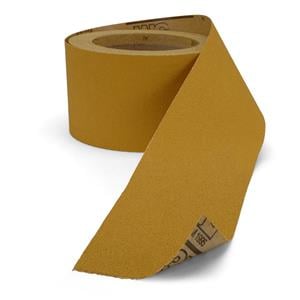
So we want our fingerboard to be dead flat as well. So I have 320 grit on this. We don't need a lot of grit. I don't want to take off a lot of material and I'm really not putting any downward pressure on. All I'm really doing here is just trying to make sure that I keep this radius block nice and straight and even I don't want to tilt it.
And then every so often I'm going to stop and check my paper to make sure I'm not getting any corns on it. Clean our paper off. Sometimes you end up with these little caked on dust in here. We want to keep those off of there because they will start grinding into our fingerboard. So we keep that cleaned off every so often.
All right, we're ready to pop this off and then we'll do one final little thing to it and then we will be done. We're going to clean this comes off. No sticky mess to clean up, like with the double stick tape. We do have a little bit of gunk on the sides like we talked about. I'm just going to take a razor blade, kind of scrape that off, come right off. So we have a really nice clean edge along with both sides.
We have a really, really nice sharp end here. I will actually round these off just a little bit before I install this, just so these points don't get broken through the rest of the build. I'm going to polish it up here in just a second. But the only other thing this fingerboard needs are side dots, which I typically install while I'm making the neck, not at this point of just making the part.
Final Sanding
Brock Poling: We just finished the project, but we're going to do one more little thing. Normally what I do is I go to white scotch bright to hit it, it'll shine it up like this. This one, I see just a little bit of texture. I'm going to use the gray Scotch-Brite, which is a little coarser first and then go straight to white. So literally it is nothing more than just a little bit of just burnishing it in. And then I hit the sides a little bit as well. And be careful not to roll those edges too much or catch those corners down at the end. You can see it shining up. And then we're going to go straight to white.
One of the things that's great about this technology is that we have both accuracy and efficiency. These three boards are all functionally identical. I could take them to any of my ukulele necks and I know it's going to fit. I know it's going to be exactly the right size. We knocked these out pretty quickly and while the machine was off and running, I was off doing other things. So I think this is a really great opportunity for folks in a small builder shop to get essentially a helper.
I'd like to give a shout out to two people that really helped inspire a lot of the content that you saw today. First, Robbie O'Brien and the Luthiere Academy. And second is Bob Mizek, who teaches two CNC courses within the academy. And his courses actually show a very similar process to what I showed you today, making this fingerboard, plus there's a ton of other stuff in there. So go check that out if you're interested in learning more.
This is one episode of a new series that we're doing called Guitar Tech, all with the goal of helping Luthiers bring modern tools into their shop. So stick around. I'll see you next time.